.png)
1: What is Dynamics 365 Vendor Collaboration?
The Vendor Collaboration module in Microsoft Dynamics 365 is a secure, self-service portal that transforms vendor relationships from a manual, error-prone process into a streamlined, transparent workflow. Instead of relying on endless emails and phone calls, vendors are granted limited, direct access to your D365 system to perform a variety of tasks, including:
● Vendor Registration
● RFQ Collaboration
● Confirming Purchase Orders (POs)
● Submitting Invoices
● Viewing Payment Statuses
Business Process Flow

Step 1: Configuring Vendor Contact Information
Navigation Path: Accounts payable > Vendors > All vendors
To enable specific individuals to use the vendor portal, you must first manage their contact records:
- Add contacts: This button opens a form to create a new contact person for the vendor. This is a prerequisite for granting portal access, as each user must be linked to a valid contact record.

Step 2: Provision the Vendor User
Navigation: All vendors > Vendors (fast tab) > Contacts
Once the contact is created, you must request user credentials for them.
- Allow access to vendor collaboration: Clicking this initiates the workflow to create a guest or external user account.
- Email (user alias): Enter the vendor's professional email address. This will serve as their login ID for the D365 portal.
- Vendor collaboration (Checkbox): Ensure this is checked in the "Legal entities the person is a contact for" grid to confirm which entities they can access.


Step 3: Create a Request for Quotation (RFQ)
Navigation: Procurement and sourcing > Requests for quotations > All requests for quotations
You can invite enabled vendors to bid on goods or services directly through the portal.
- Solicitation type: On a New request for quotation, select a type (e.g., RFQ - Goods) to categorize the bid.
- Vendor account: Add the specific vendor (e.g., 1001) to the Vendor Fast Tab to invite them to the case.

- Item number: Specify the products (e.g., 1000 - Surface Pro) the vendor should bid on in the Lines section.
- Send: Dispatches the RFQ to the vendor's portal for their response.

Step 4: The Vendor Experience (Portal View)
Navigation: Main Dashboard (External Vendor View)
When the vendor logs in, they use the following workspaces to interact with your organization:
- Invoicing: For submitting invoices and tracking payment status.
- Purchase order confirmation: For reviewing and confirming new PO's.
- Vendor bidding: The hub for participating in active RFQs.
- Vendor information: For maintaining their own company profile and contact details.

Step 5: Vendor Responding to a Bid
Navigation: Vendor bidding workspace > Vendor Bidding > New bid invitations
The vendor follows these steps to submit a quote:
- New bid invitations: Lists all RFQs that require a response.
- Request for quotation ID: The vendor clicks the ID (e.g., 000088) to open the bid details.

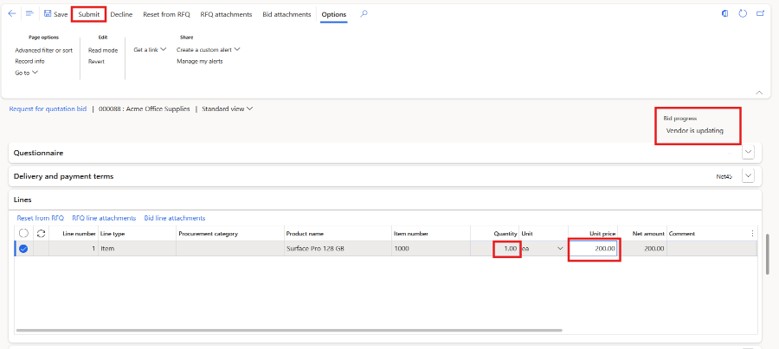
Navigation: New Bid Invitations > (Click on the RFQ) > Bid (fast tab)
- Bid: The vendor clicks this button to start entering their pricing and terms.
- Bid progress: Displays the current status (e.g., Not started) to help the vendor track their submission.

· Quantity / Unit price: The vendor enters their offered quantity and price (e.g., 200.00) in the Lines section.
· Bid progress (Vendor is updating): Status changes once the vendor begins editing the bid.
· Submit: The vendor clicks this to send the completed quote back to your organization.
Step 6: Review and Award the Bid
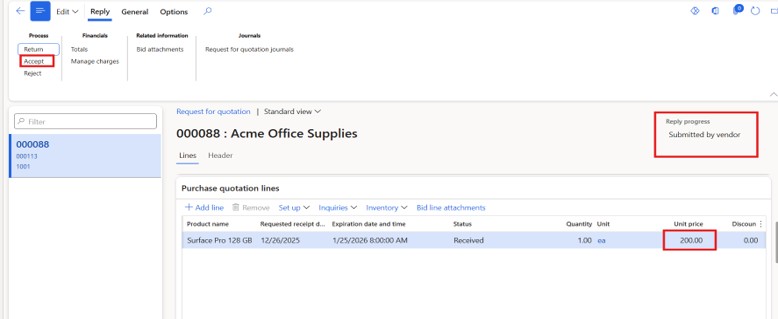
Navigation: Procurement and sourcing > Requests for quotations > All requests for quotations > [Select RFQ] > Quotation tab > Replies > Manage replies
- Accept: After reviewing the vendor's price and progress, the purchaser clicks Accept to award the bid.
- Awarded bids: The finalized bid is then moved to the Awarded bids list.
Navigation for Awarded Bids
To view the list of awarded bids from the vendor's perspective, follow this path:
Main Dashboard > Vendor bidding workspace > Bids > Awarded bids

Step7: Generate Purchase Order
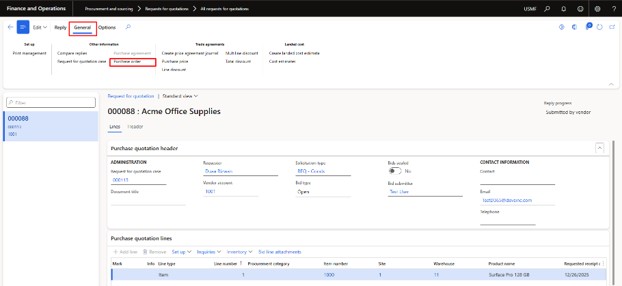
Navigation: Procurement and sourcing > Requests for quotations > All requests for quotations > [Select RFQ] > Quotation tab > Replies > Manage replies > General
- Purchase order: Click this to convert the awarded bid directly into a formal Purchase Order.
- Send for confirmation: From the newly created PO, use the Purchase tab to send the order back to the vendor portal for their final confirmation.

Purchase order confirmation (Vendor View): The vendor accesses this workspace to review and Accept the final order.


Step 8: Final Vendor Confirmation
Navigation Path: Vendor Portal Dashboard > Purchase order confirmation workspace
- Accept: The vendor reviews the received PO (e.g., 00000850) and clicks Accept to finalize the order.
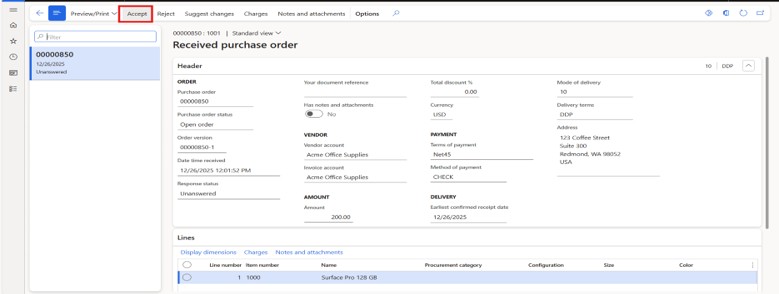
- Awaiting customer action: Once accepted by the vendor, the status updates to Accepted, alerting the purchaser to proceed with fulfillment.
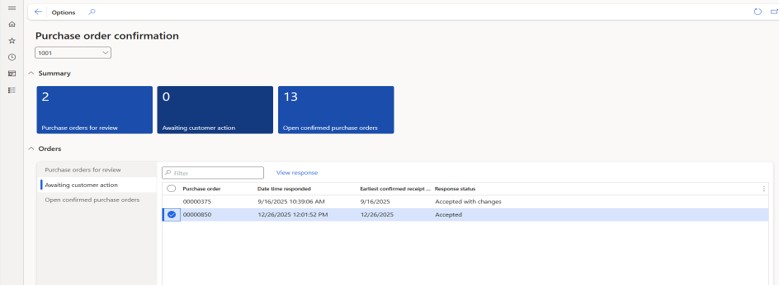
- The Purchase orders sent for confirmation option allows users to track and review the status of purchase orders that have been sent to vendors through the vendor portal.


Step 9: Finalizing the Confirmed Order
Navigation Path: Procurement and sourcing > Purchase orders> All purchase orders > [Select Order 00000850] > Purchase tab
After the vendor clicks "Accept" in their portal (as seen in the response status "Accepted" in the header), the internal procurement team must finalize the order.
- Confirm: Click this button in the Actions group of the Purchase tab to officially record the vendor's acceptance in the system.
- Confirmed: Once the internal confirmation is processed, the system status updates to Confirmed, signaling that the order is finalized and ready for the next stage, such as receiving or invoicing.

Step 10: Monitor Confirmed Purchase Orders
Navigation Path: Main Dashboard > Purchase order confirmation workspace > Orders > Open confirmed purchase orders
Once the internal procurement team has confirmed the order, it moves into a finalized state for tracking.
- Open confirmed purchase orders: This section displays all orders that have successfully completed the vendor collaboration cycle and have been internally confirmed.

Step 11: Process and Post the Vendor Invoice
Navigation Path: Accounts payable > Invoices > Vendor invoice
This is the final stage where the vendor's billing is recorded and posted for payment.
- Number: Enter the unique invoice identifier provided by the vendor (e.g., 10123).
- Post: Click this button in the Action Pane to officially record the financial transaction and prepare the invoice for payment.

Step 12: View Invoicing Status (Vendor Perspective)
Navigation Path: Main Dashboard >Invoicing workspace
From the vendor portal, the external user can monitor the lifecycle of their submitted invoices to ensure payment is pending.
- Invoicing workspace: This dashboard provides the vendor with a bird's-eye view of all their financial interactions.
- Invoice: The unique identifier for the processed bill (e.g., 10123) linked to the original purchase order (e.g., 00000850).
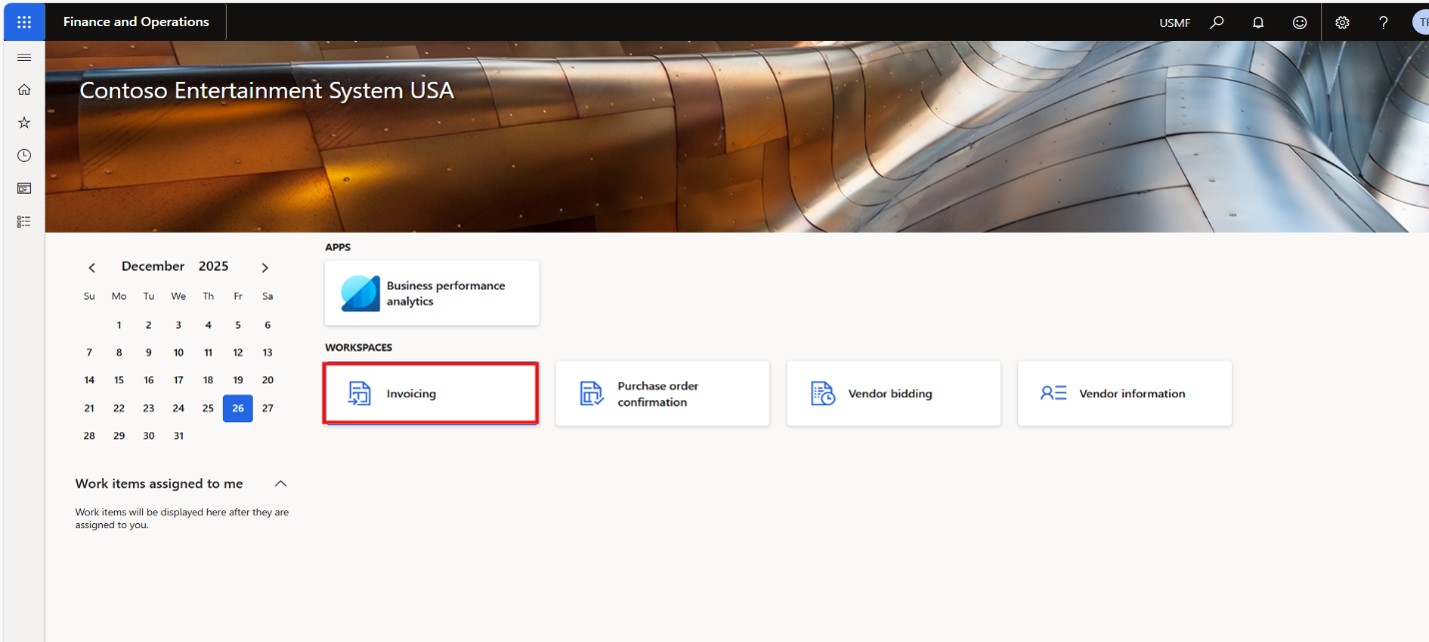
- Invoice status: This red-outlined field shows as Unpaid, indicating that the invoice has been successfully recorded and approved but the payment disbursement has not yet occurred.

Vendor Collaboration Framework

1. Vendor Registration
Objective: Onboard new vendors via the portal:
- Vendor accesses the self-service portal and submits a registration request.
- Fills out the registration form with company details, tax info, banking, etc.
- Procurement team reviews submitted data.
- Upon approval, vendor profile is created in D365 and collaboration access is granted.
2. RFQ Collaboration
Objective: Enable vendors to participate in bidding:
- Procurement team creates and publishes RFQs in the portal.
- Vendors receive RFQs and submit bids/quotes directly.
- Vendors can track the status of their submissions (e.g., accepted, rejected, under review).
- Procurement evaluates and awards the RFQ.
3. Purchase Order Collaboration
Objective: Streamline PO communication and confirmations:
- Approved vendors view assigned POs in the portal.
- Vendors can:
- Accept the PO as-is
- Reject the PO with reasons
- Request changes (e.g., quantity, delivery date)
- Vendors confirm delivery schedules and share shipping details.
4. Invoice Collaboration
Objective: Simplify invoice submission and tracking:
- Vendors submit invoices directly through the portal.
- System performs 3-way match: PO, receipt, and invoice.
- Invoices routed for approval based on matching logic.
- Vendors can track invoice status (e.g., pending, approved, paid).
2: Getting Started with Dynamics 365
To set up the D365 Vendor Collaboration portal, there are a few things you'll need to handle.
● Licensing: One key point to remember is the cost. Each vendor contact that needs access to the portal will require their own D365 license. While these are usually "external" licenses, the costs can add up, so you need to weigh the investment against the benefits.
● Technical Setup: You'll need to set up each vendor contact as a guest user on your company's tenant using Azure Active Directory (AD). You’ll also use Extensible Data Security (XDS) policies to make sure each vendor only sees their own data.
3: Key Benefits: A Shared Perspective

By centralizing communication and data, both your organization and your vendors can achieve:
- Streamlined Communication and Improved Visibility: The portal provides a single source of truth for all interactions. Purchase order statuses, delivery dates, and invoice details are updated in real time, giving everyone on both sides a clear, instant view of where things stand. This centralized communication significantly reduces the end to end time from PO to invoice.
- Reduced Manual Work and Increased Accuracy: All confirmations and documents are accessible in the portal, cutting down on back and forth emails and phone calls, and drastically reducing the potential for human error.
- Stronger, More Transparent Relationships: Vendors with a direct, transparent view into the process, you build trust and confidence. Knowing exactly where they stand on an order or an invoice, which fosters a more collaborative and positive long term partnership.
- Scalability: As your organization grows and your number of vendors increases, a manual communication process becomes unmanageable. The Vendor Collaboration portal ensures that the process scales seamlessly without the need to add headcount or complex integrations, making it a sustainable solution for the future.
Research by McKinsey has shown that companies that effectively collaborate with suppliers demonstrate higher growth, lower operating costs, and greater profitability than their peers.
4: Where Vendor Collaboration Can Fall Short
Even with a great tool, there are a few common stumbling blocks to watch out for.
- The Mindset Challenge: Both sides have to be willing to commit to a long-term, shared approach, and that doesn't happen overnight.
- Building Real Trust: True collaboration requires a high level of trust and transparency. Many companies are uncomfortable sharing sensitive information like costs, which can hold back the deepest forms of collaboration.
- Getting Everyone on Board: Making a project like this work isn't just a job for the procurement team. It requires people from all over your company to get involved, and a lack of clear leadership and incentives can slow everything down.
- Measuring the Intangible: The biggest benefits, like joint innovation, can be hard to measure in a spreadsheet. If you can't clearly show the value of your efforts, it’s tough to justify the time and resources you've invested.
Conclusion
For any organization seeking to improve its procurement practices, vendor collaboration is no longer an optional extra. It represents a paradigm shift from simple purchasing to strategic partnership.
By providing a unified platform for communication and action, tools like Microsoft Dynamics 365 Vendor Collaboration address the key barriers to collaboration and provide a clear, proven pathway to unlock value. It enables companies to move beyond a focus on price and truly engage with their suppliers on a deeper level, building resilient, transparent, and ultimately, more profitable relationships for everyone involved
Author: Daib Tariq
Associate Functional Consultant - D365
As an Associate Functional Consultant, I work on implementing and fine-tuning Dynamics 365 Finance and Supply Chain modules. I’m passionate about helping organizations turn system capabilities into smarter, smoother business operations.

Get In Touch


Let's Talk Business
